Revised 04/02/2026
Because Outlook integrates with akoyaGO, emails can be tracked from Outlook to akoyaGO. This tracking can be automatic or manual, based on your preference. This guide walks through the available options and akoyaGO recommendations.
Dynamics 365 email tracking uses three mechanisms:
- The user's email tracking settings (configured in Personalization Settings) determine which emails are automatically tracked into akoyaGO.
- When an email is manually tracked using Set Regarding in Outlook, or when an email is created from a record's timeline in akoyaGO, the email is associated with that specific record.
- Any record in akoyaGO that contains an email address matching a recipient or sender in the To, From, CC, or BCC fields.
Because of this, a single tracked email can appear on multiple records when the same email address is referenced in multiple places throughout the CRM (Contacts, Constituents, Donors, Users, GOapply Users, etc.). The Set Regarding record is not the only record that receives the tracked email activity.
introduction
Email Tracking settings can be accessed by clicking the gear icon in the upper-right corner of your CRM, then selecting Personalization Settings. For more information on Personalization Settings, see Personalization Settings KA.
Email tracking options are found under the "Email" tab.
The first setting you will see in the Email tab is "Allow Microsoft Dynamics 365 users to send email on your behalf." For more information on this setting, see this related KA Allow Microsoft to Send Emails on My Behalf
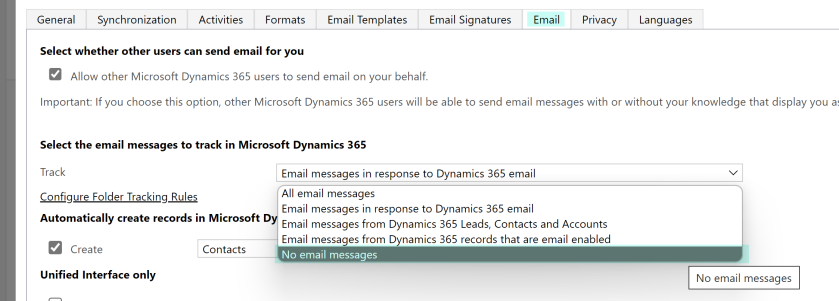
In the "Select the email messages to track in Microsoft Dynamics 365" section, there are 5 tracking options available. Below are descriptions of each option and akoyaGO recommendations:
- All email messages. akoyaGO does not recommend choosing this option, as ALL emails will be tracked to akoyaGO. Both junk mail and business conversations are treated the same.
- Email messages in response to Dynamics 365 email. Only replies to or forwards of email messages that have already been tracked will be saved as email activities. If you would like auto-tracking of emails, this is akoyaGO's recommendation!
- Email messages from Dynamics 365 apps, Leads, Contacts, and Accounts. Tracks email messages if they originate from someone with a Dynamics 365 for Customer Engagement lead, contact, or account record. akoyaGO does not recommend this option, as it can lead to many emails being accidentally tracked.
- Email messages from Dynamics 365 records that are email-enabled. Tracks email messages from all record types (including custom record types) that contain an email address field. akoyaGO does not recommend this option, as it can lead to many emails being accidentally tracked.
- No email messages. Allows the user to choose manually what they would like to track.
*akoyaGO recommends choosing one of the 2 highlighted options above.
From the Email tab of Personalization Settings, there is an option to Create Contacts from the sender or organizer of tracked email messages and meetings. akoyaGO strongly discourages you from opting in to this option, as it can create many accidental Contacts in your database!
If you need to create a Contact from Outlook, we instead recommend utilizing the Contact Quick Create Form accessed from the Dynamics 3635 Add-In within Outlook:
Automatic email tracking - Email messages in response to Dynamics 365 email
From the Email tab in personalization settings, select “Email messages in response to Dynamics 365 email.”
This option will track responses to threads that were initially tracked or originated from akoyaGO. All tracked information for a record will appear on its timeline. Choose this option carefully.
To UNTRACK or stop the tracking of an email thread within Outlook, open the Dynamics 365 Add-In and click the three dots. Choose "Untrack"
manual tracking
By selecting “No email messages” in your Personalization Settings, you have the option to independently choose which emails you want to track.
Tracking email from Outlook
If an email is received that has not already been associated with a record, you can choose where to track it in Outlook itself. This process can also be done for untracked emails that have already been sent.
(Note: this option is only available if the user’s mailbox in akoyaGO is synchronized with Outlook. For more information, please refer to the Enabling Outlook Integration knowledge article on GOsupport.)
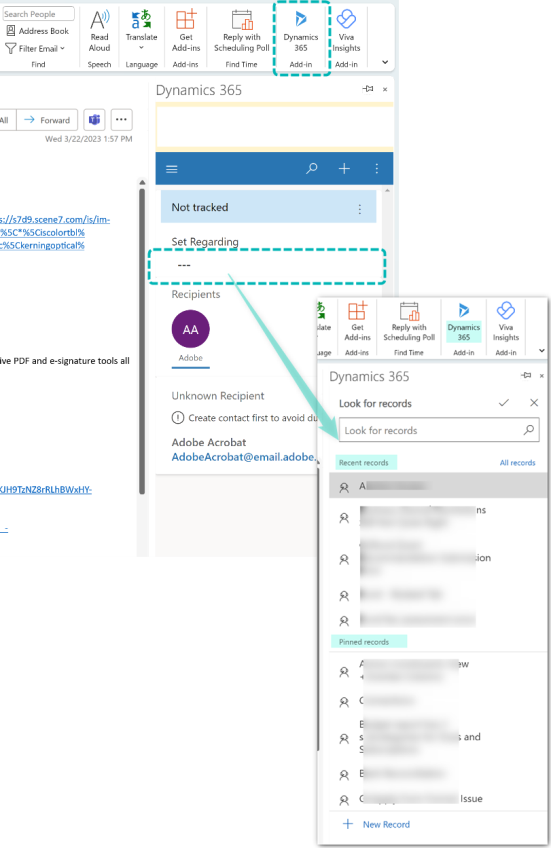
In the upper right-hand of your Outlook application, you should see an icon for “Dynamics 365.” When selected, a window will appear to the right of an email. If this email is already being tracked, you will see the name of the associated record under “Set Regarding.”
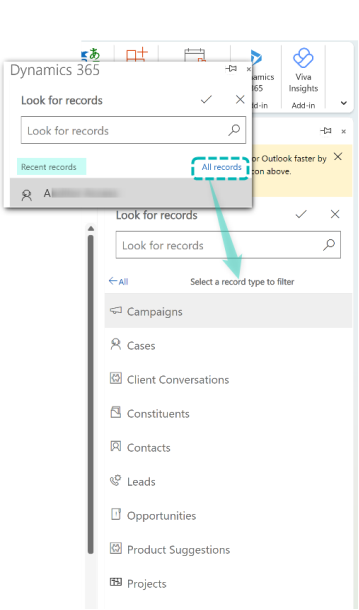
Once you click into the field below “Set Regarding,” a list of records will appear. You can readily choose from a record you recently worked on or a record you pinned within your akoyaGO.
If the record you need is not currently showing, clicking All Records lets you search across all tables in akoyaGO.